As a menu grows past a few dozen items, a single flat list of categories stops working. Guests scanning "Mains" alongside "Sides" alongside "Hot Drinks" lose the sense of structure that helps them decide quickly. WowMenu's two-tier category system solves this by letting you organise your menu into top-level groups — Food, Beverages, Desserts — each containing focused sub-categories underneath, such as Food → Mains → Grills & BBQ.
Categories can be reordered by drag-and-drop directly in your portal, so you control exactly what guests see first. And as your menu grows, any existing category can be upgraded into its own group with a single click — turning a flat "Mains" category into a structured group with Grills, Curries, Pasta, and Seafood underneath, without re-entering a single dish.
How it connects
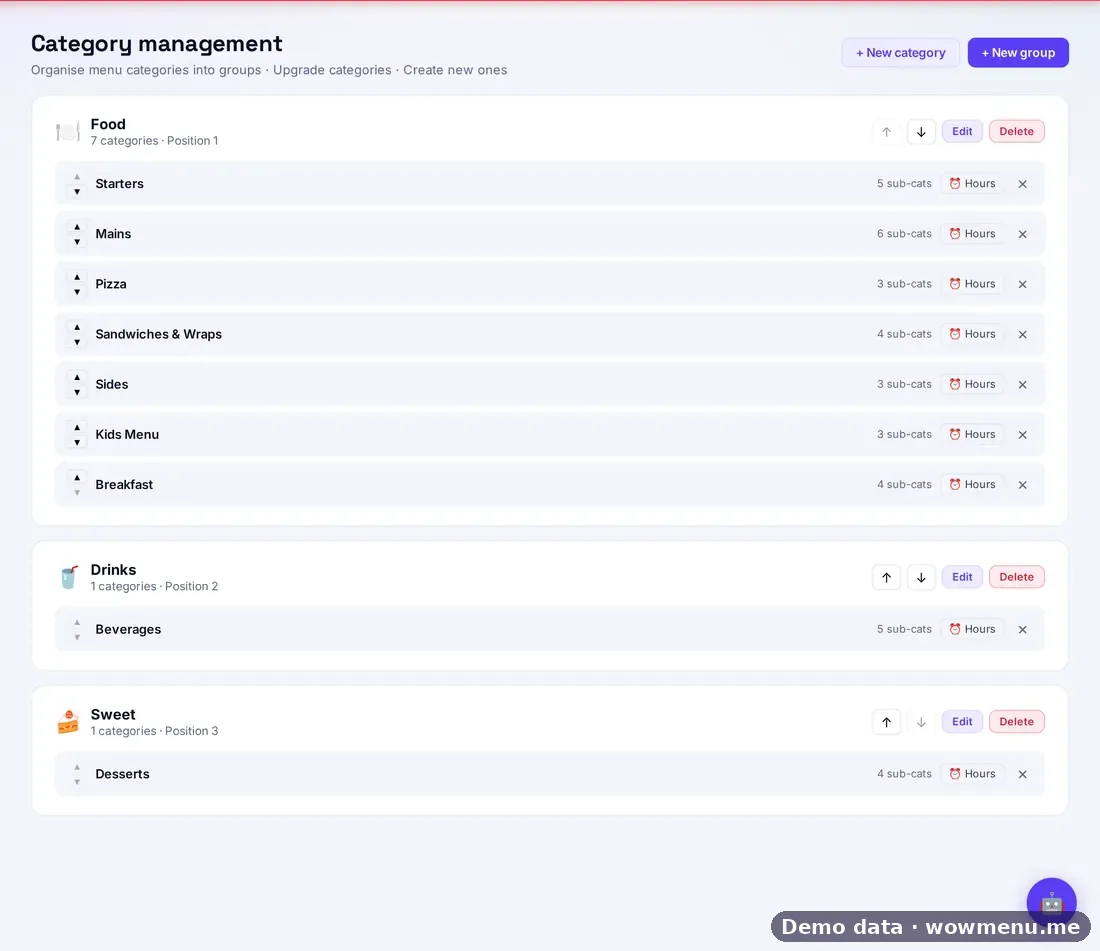
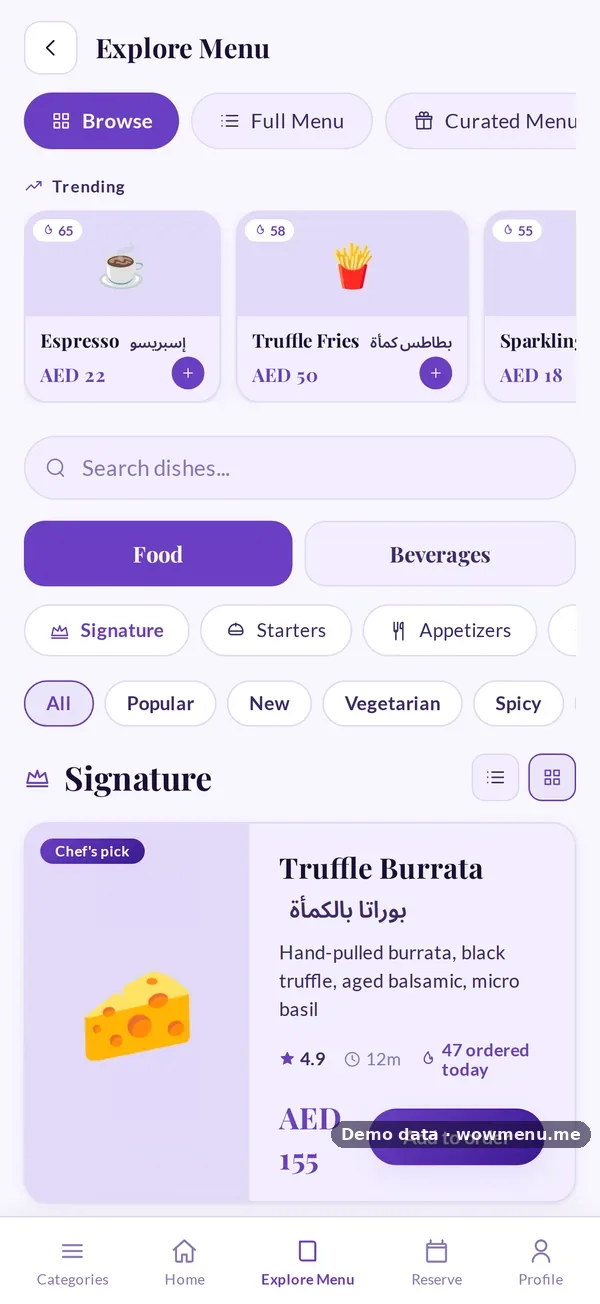
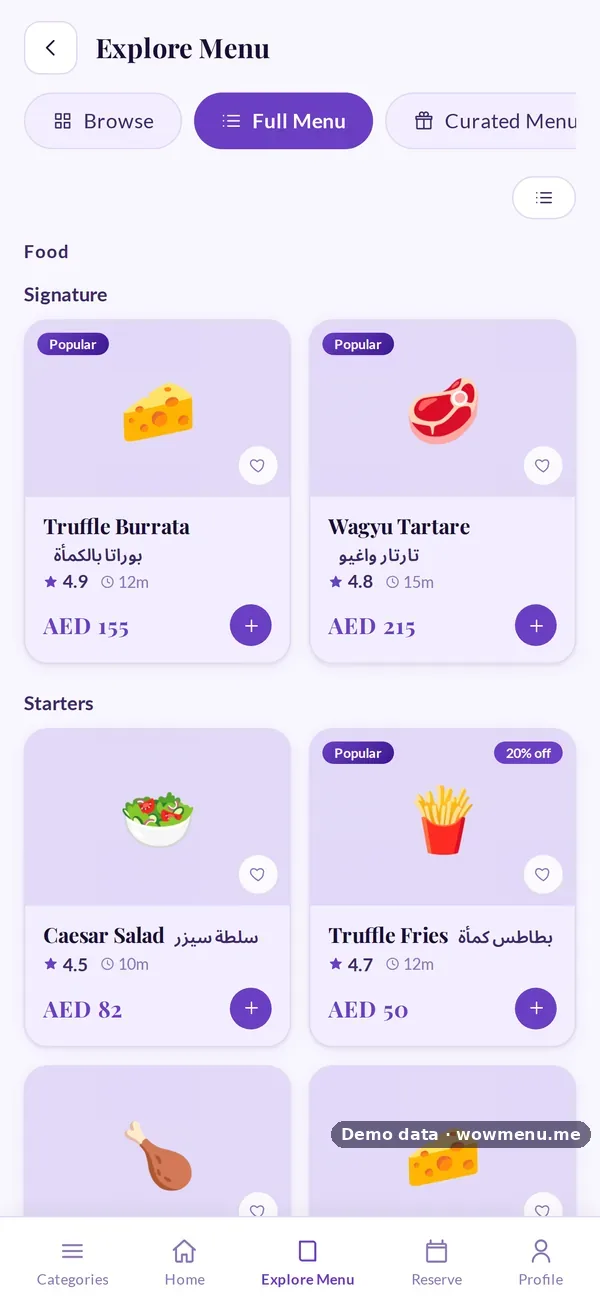
What the owner sets up or sees in the portal, and what the guest sees in the QR menu. Screens are from the demo restaurant, Maison Lumière, with demo data.
Groups and categories decide how the guest browses
The owner organises groups, categories and availability hours. The guest browses the same structure as tabs and chips.
Key benefits
What Two-Tier Category Group Management does for your restaurant
Two-tier structure guests understand
Broad groups like Food and Beverages expand into focused sub-categories, mirroring how guests naturally browse a printed menu — but with the speed of digital navigation.
Drag-and-reorder categories and groups
Control the exact order categories and groups appear in, directly from your portal. Promote your highest-margin category to the top with a drag, not a support ticket.
One-click upgrade to a group
When a single category grows too large, convert it into its own group instantly — its existing items are automatically organised into new sub-categories you define, with zero data loss.
How it works
Start with simple categories
New menus begin with a flat category list — Starters, Mains, Beverages — exactly as printed menus typically work.
Upgrade any category into a group as you grow
When a category like Mains becomes too broad, click 'Upgrade to group' and define sub-categories — Grills, Curries, Seafood — in seconds.
Reorder with drag-and-drop
Arrange both top-level groups and their sub-categories in the order you want guests to see them, directly from the Category Management screen.
Frequently asked
Do I have to use two tiers, or can I keep a flat structure?
Flat categories work fine for smaller menus and remain fully supported. The two-tier group structure is there for when your menu grows — you opt in category by category, whenever it makes sense.
What happens to existing menu items when I upgrade a category to a group?
Nothing is lost. Your existing dishes stay exactly where they are — you simply define new sub-categories and assign items to them, all from the same screen, without re-creating any item.
Can sub-categories have their own icons and ordering?
Yes. Each sub-category has its own emoji icon and independent position within its parent group, fully controllable via drag-and-drop.